
Firefox has its own proxy settings, so you can send just your Firefox browsing through our UK proxy while the rest of your computer stays unchanged. Works the same on Windows and Mac.
Your proxy details
-
Proxy server address: proxy.mysetup.co.uk
-
Port: 80
-
Username & password: the same login you use at www.libertyshield.com
Our proxy is UK-based, so websites will see you in the United Kingdom. The proxy does not work for other countries — for those, use the VPN instead.
Set up the proxy
-
Click the menu button (☰) in the top-right corner of Firefox and choose Settings.
-
Select Privacy and security on the left and scroll to the Connection and software security section.
-
Click Advanced settings, go to Proxy settings, and click Configure proxy.
-
In the Connection Settings dialog, select Manual proxy configuration.
-
In HTTP Proxy enter proxy.mysetup.co.uk and Port 80.
-
Tick “Also use this proxy for HTTPS”.
-
Click OK.
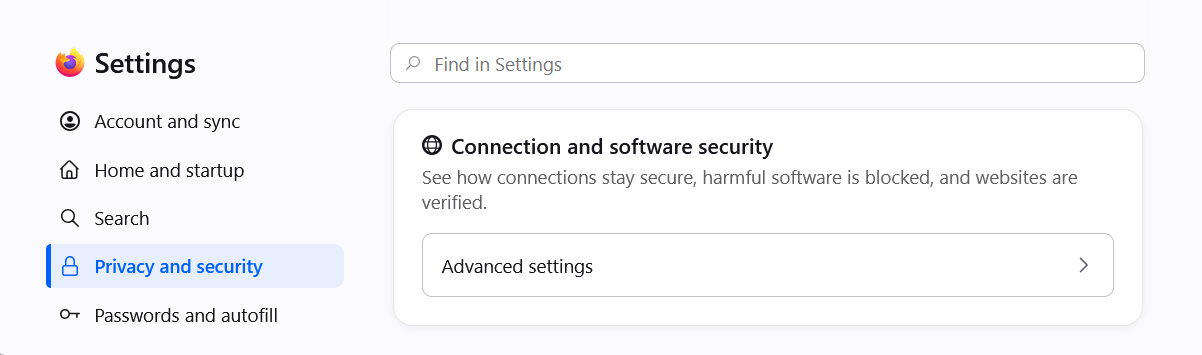
Privacy and security → Connection and software security → Advanced settings
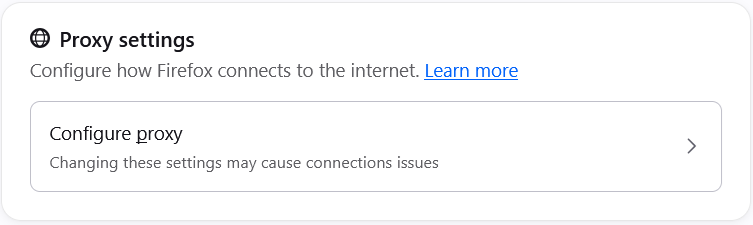
Proxy settings → Configure proxy
Using an older Firefox? The same dialog lives under General → Network Settings → Settings… — the options inside are identical.
Check it's working
Visit showmemyip.com — it should show a UK location. The first page you open will ask for your username and password — enter your Liberty Shield login.
Turning the proxy off
Open the same Connection Settings dialog and select “No proxy”, then click OK.
Greg
Comments