
Chrome on Mac uses the system proxy setting — Chrome simply opens the right place in System Settings for you.
Your proxy details
-
Proxy server address: proxy.mysetup.co.uk
-
Port: 80
-
Username & password: the same login you use at www.libertyshield.com
Our proxy is UK-based, so websites will see you in the United Kingdom. The proxy does not work for other countries — for those, use the VPN instead.
Set up the proxy
-
Click the three dots (⋮) in the top-right of Chrome and choose Settings.
-
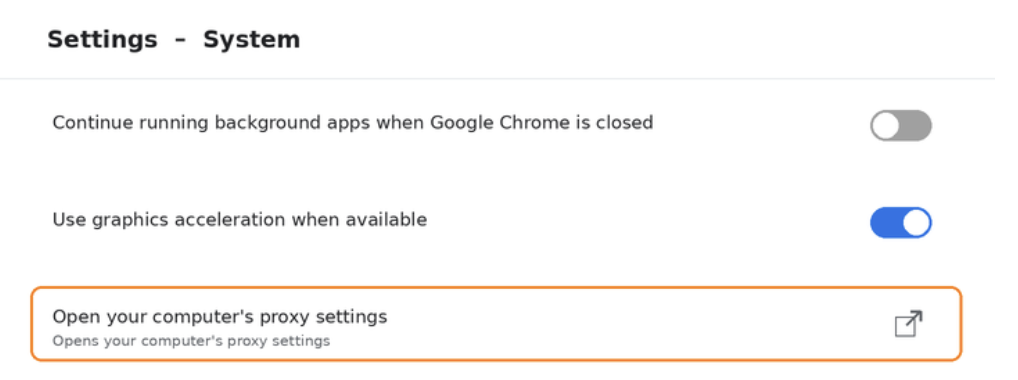
Choose System in the left menu, then click Open your computer's proxy settings.
-
The Mac's Proxies pane opens. Turn on Web Proxy (HTTP) and Secure Web Proxy (HTTPS) — server proxy.mysetup.co.uk, port 80, plus your Liberty Shield username and password.
-
Click OK.
Check it's working
Visit showmemyip.com — it should show a UK location. The first page you open will ask for your username and password — enter your Liberty Shield login.
Turning the proxy off
Open the same Proxies pane and switch both proxies off, then click OK.
Greg
Comments