
The free Liberty Shield VPN app is available on the App Store for iPhone and iPad. This guide shows you how to install it, connect, and switch countries.
1Install from the App Store
-
On your iPhone or iPad, go to the Downloads page and tap Download for iPhone/iPad, or search the App Store for Liberty Shield VPN.
-
Tap Get, then confirm with Face ID, Touch ID or by double-clicking the side button.
-
When it finishes installing, tap Open.
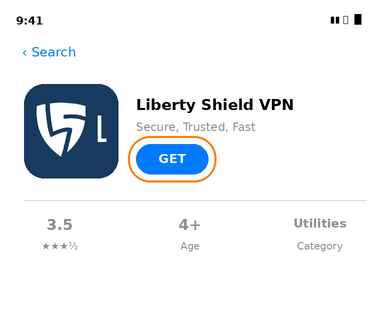
The Liberty Shield VPN app in the App Store.
2Sign in
-
Accept the terms and conditions when the app first opens.
-
Enter your username (usually your email address) and password, then tap Sign In.
Note: the app uses the same email and password as your account on www.libertyshield.com. Forgotten your password? Use Forgot Password on the website sign-in page.
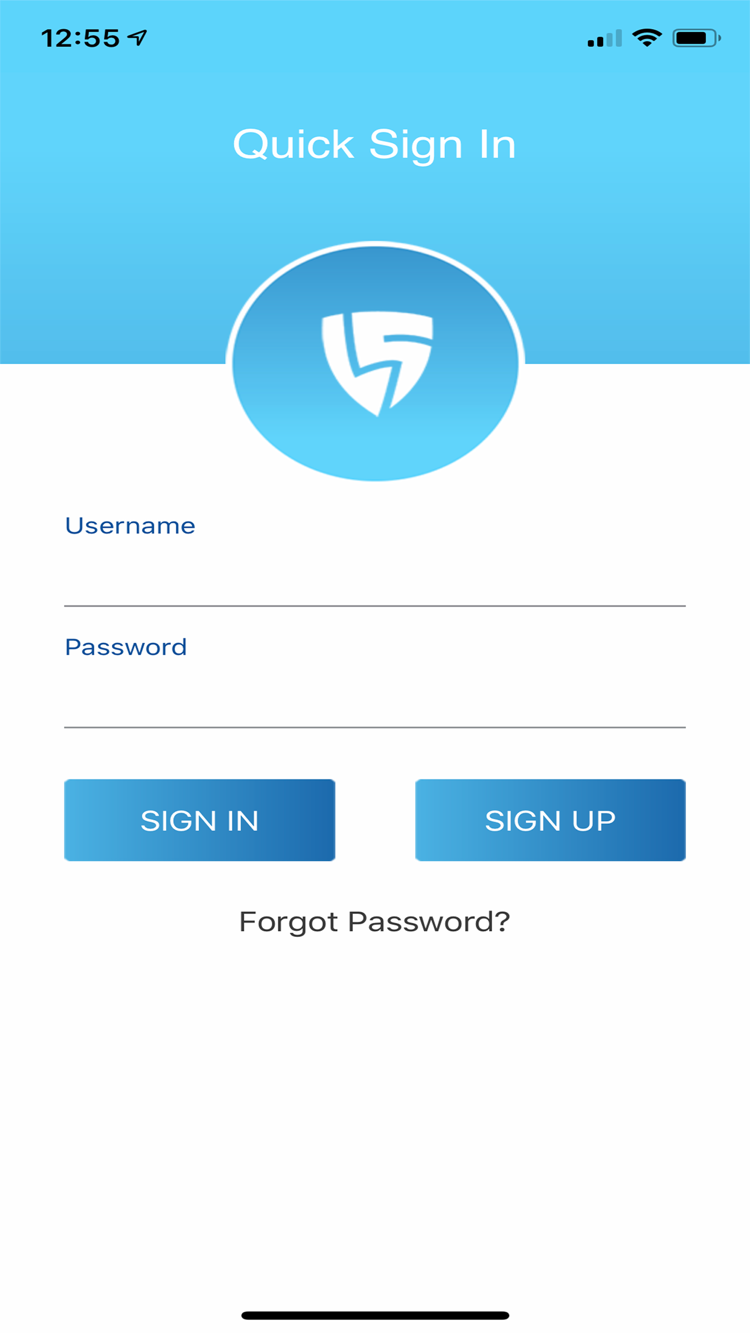
The Quick Sign In screen.
3Connect
-
Tap the red shield to connect.
-
The first time you connect, iOS will ask “Liberty Shield Would Like to Add VPN Configurations”. Tap Allow and confirm with your passcode or Face ID. This only happens once.
-
The shield turns green and a VPN badge appears at the top of your screen — you are connected.
-
To disconnect, tap the green shield again.
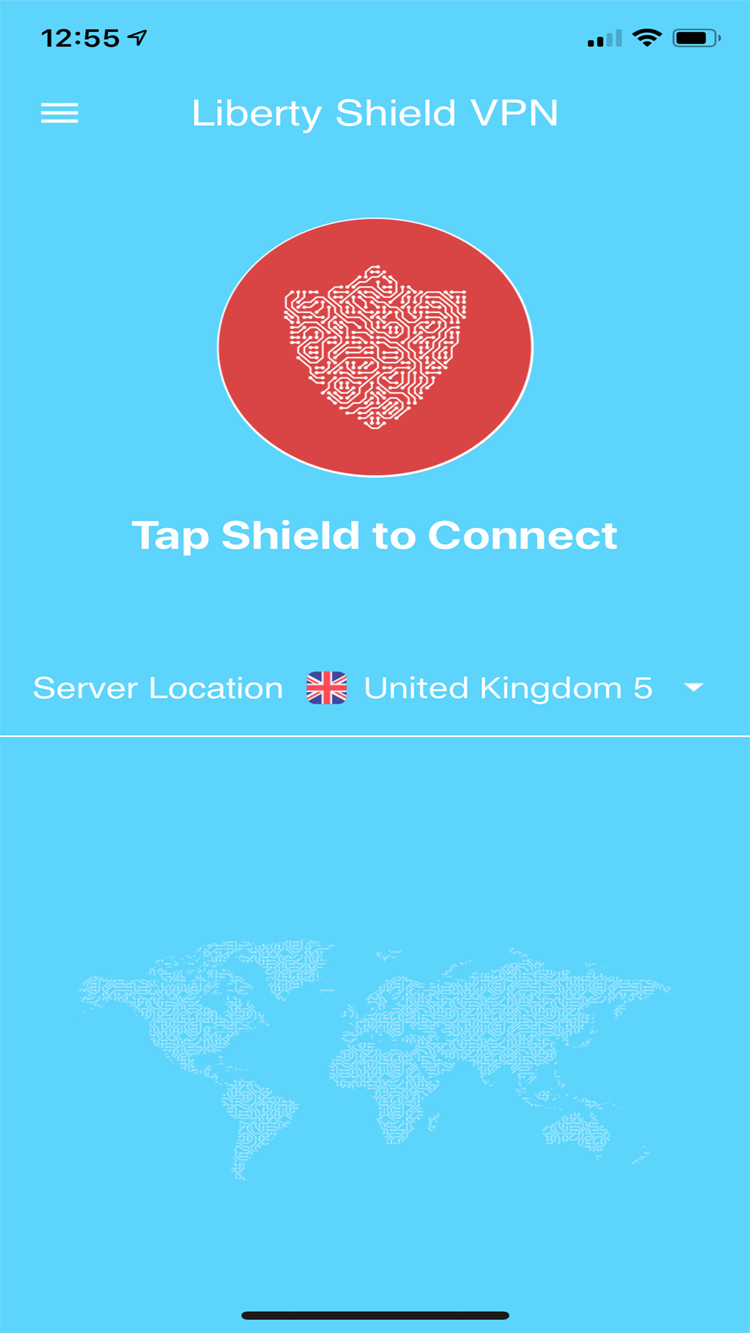
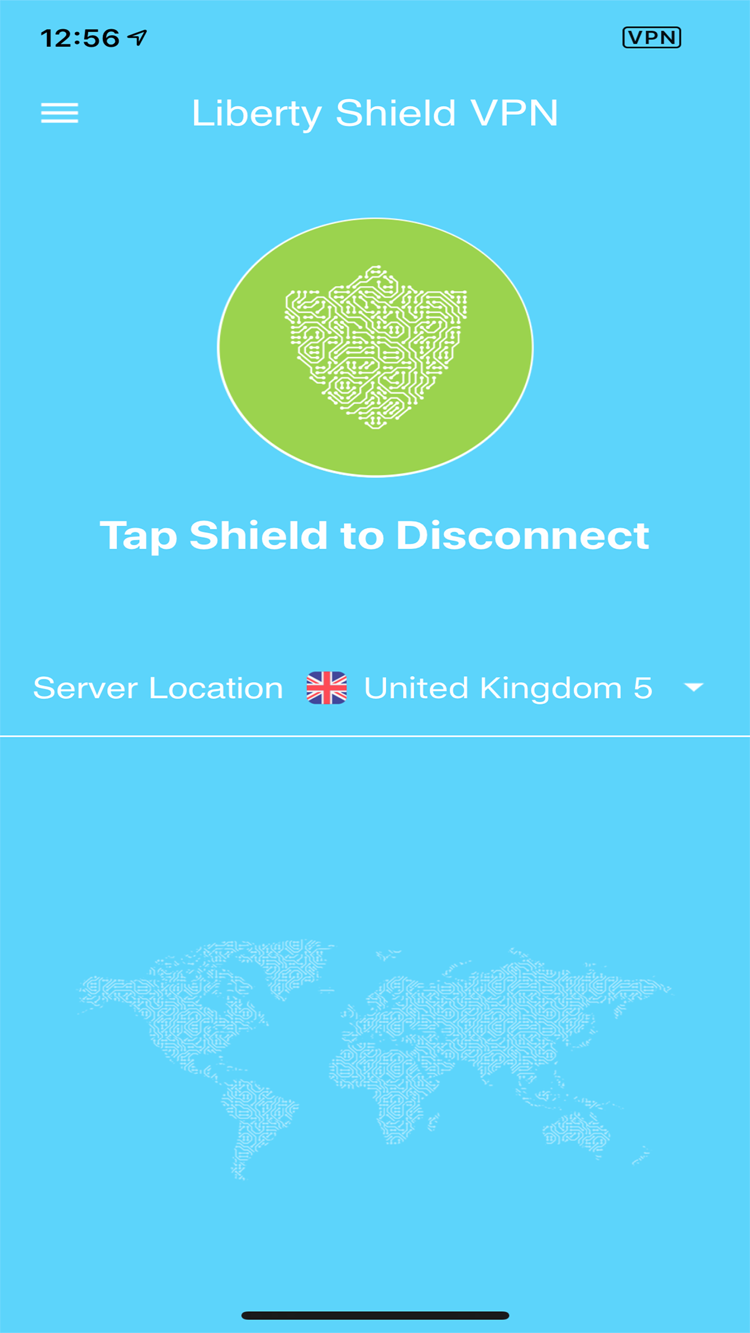
Red shield = disconnected, green shield = connected.
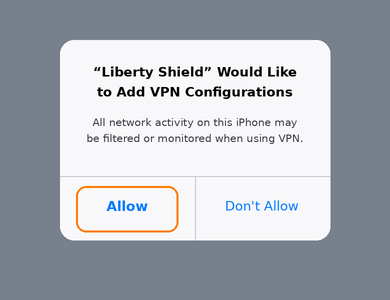
iOS asks permission the first time you connect — tap Allow.
Note: to check you are still connected at any time, look for the VPN badge in Control Centre (swipe down from the top-right corner).
Changing your VPN country
-
Disconnect first — you must be disconnected before changing country or server.
-
Tap the Server Location bar on the main app screen.
-
Choose the country and server you want, then reconnect.
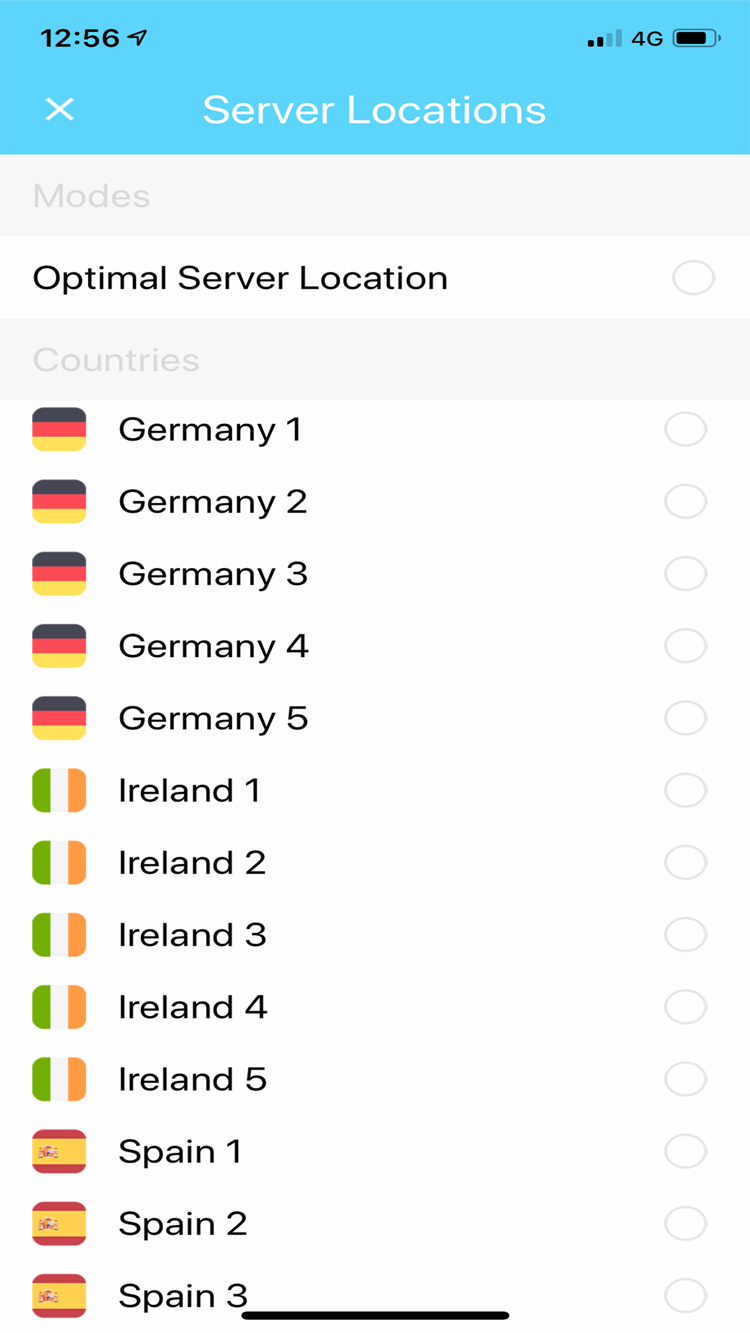
The Server Locations list.
Note: if you also have a Liberty Shield VPN Router, changing country in the app updates your whole account — including the router.
App settings
Tap the menu button (three lines, top-left) and choose Setting to enable options like Connect VPN on Sign In — handy if you want the VPN to connect automatically whenever you open the app.
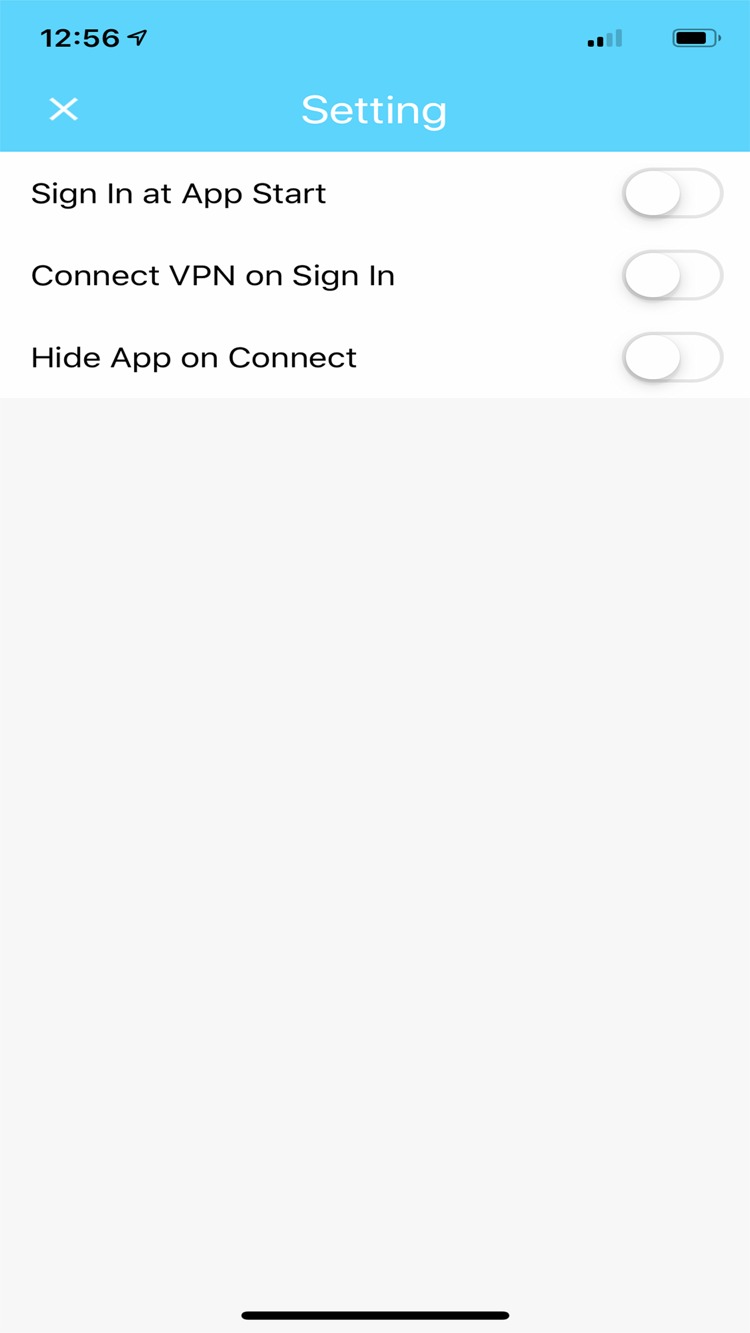
The app Settings screen.
Quick troubleshooting
-
A streaming app still shows your real location? Many iPhone/iPad apps check GPS, which a VPN cannot hide. Turn off Location Services for that app (Settings > Privacy & Security > Location Services) or use the website in Safari or Chrome instead.
-
Can't sign in, or the VPN won't connect? Reset your password at www.libertyshield.com — this fixes most app connection problems.
-
Want to check where you appear? Visit showmemyip.com in Safari — it should show the VPN country you have selected.
Stephen
Comments