
This guide shows you how to install the Liberty Shield VPN app on Windows 10 or Windows 11 and connect for the first time. It takes about two minutes.
1Download the app
-
Go to www.libertyshield.com/Home/Downloads and click Download for Windows.
-
When the download finishes, open the file. In most browsers you can press Ctrl + J to see your downloads, then click the Liberty Shield installer.
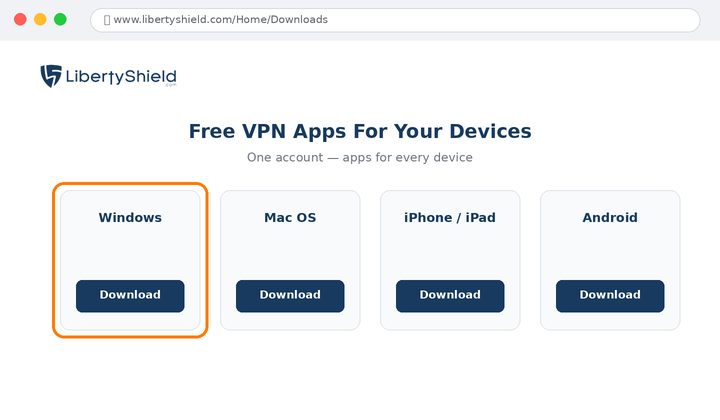
The Downloads page. Click Download for Windows.
2Allow the installer to run
If Windows asks “Do you want to allow this app from an unknown publisher to make changes to your device?” click Yes. If a blue Microsoft Defender SmartScreen window appears, click More info and then Run anyway.
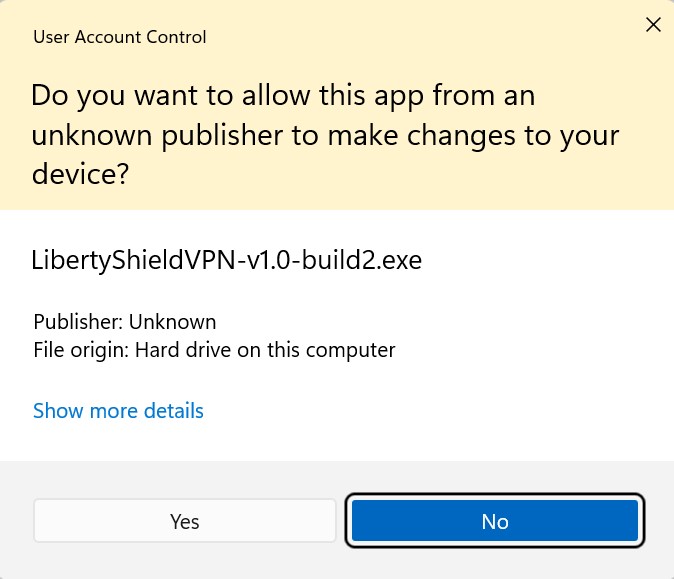
Windows may ask for permission before the installer runs.
3Run the setup wizard
Click Next, then Next again, then Install.
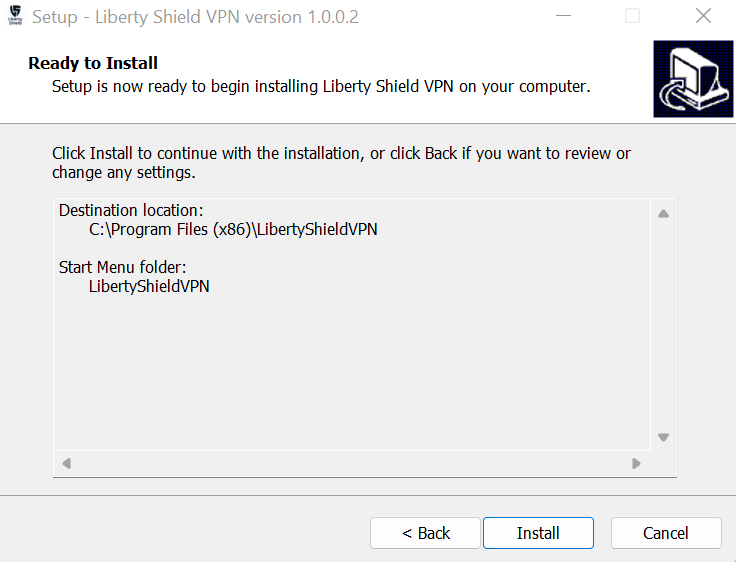
Click Install to begin.
4Install the network driver
If Windows asks “Would you like to install this device software?” from OpenVPN Technologies, click Install — this is the secure network driver our VPN uses.
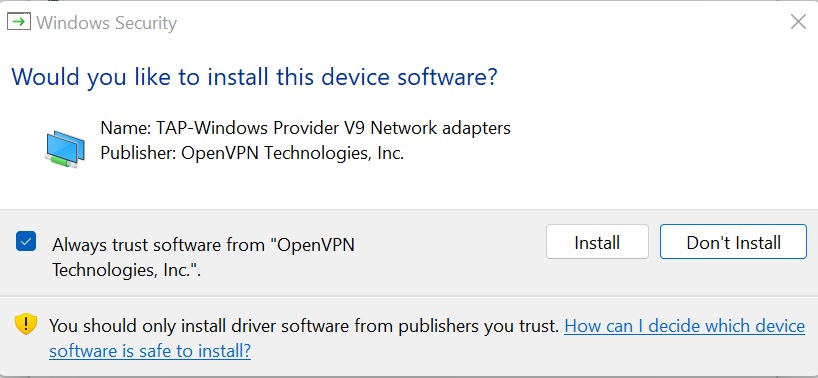
Click Install to trust the OpenVPN driver.
5Finish and open the app
Leave Run LibertyShieldVPN.exe ticked and click Finish. The first time the app opens, Windows will ask permission again — click Yes.
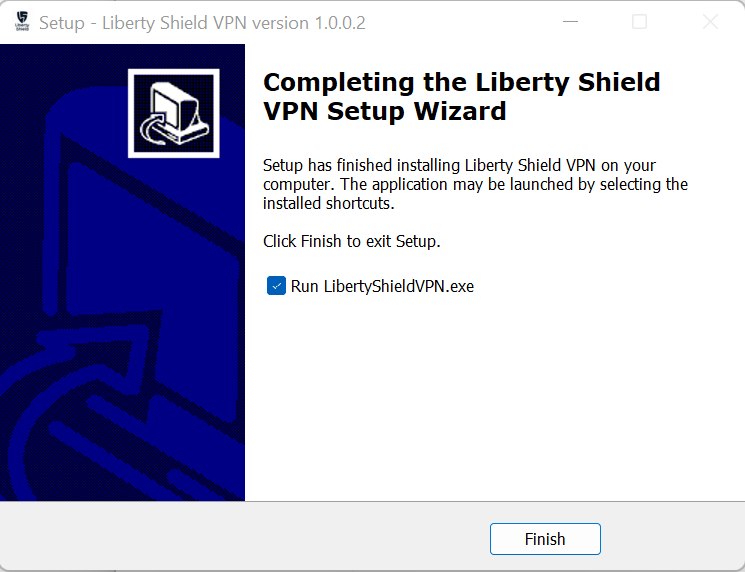
Leave the checkbox ticked and click Finish.
6Sign in
Enter your Liberty Shield username (for most customers this is your email address) and password, then click Sign In.
Note: the app uses the same email and password as your account on www.libertyshield.com. Forgotten it? Use Forgot Password on the website, then sign in to the app with your new password.
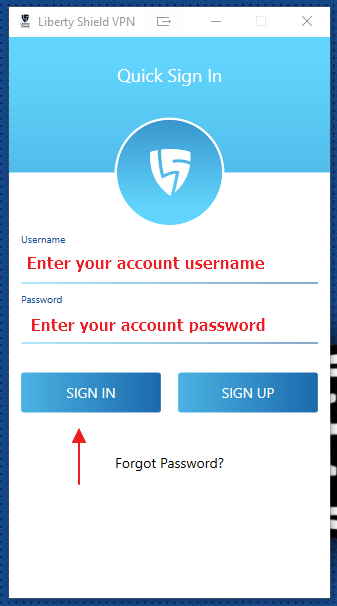
Enter your email and password, then click Sign In.
7Connect
Click the red shield to connect. When it turns green, you are connected to the VPN. To disconnect, click the green shield — it will turn red again.
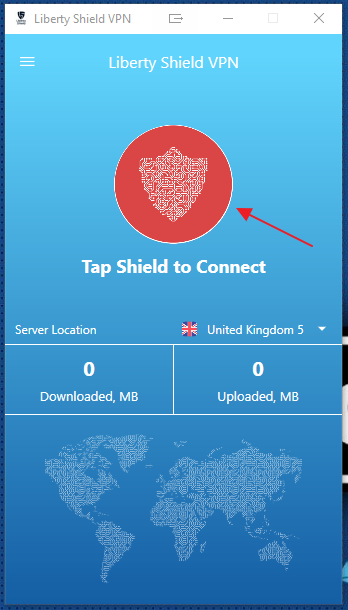
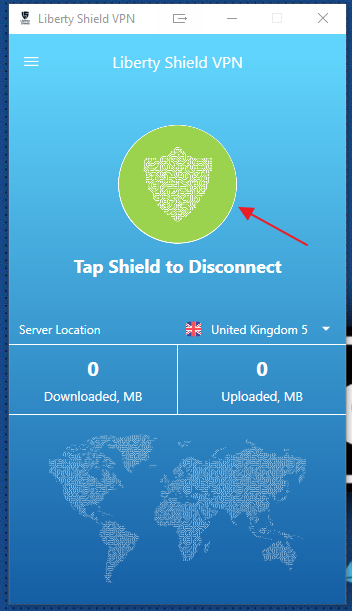
Red = disconnected, green = connected.
8Change your VPN country
-
Disconnect first — you must be disconnected before changing country or server.
-
Click the Server Location dropdown at the bottom of the app window.
-
Choose the country and server you want, then reconnect.
Note: if you also have a Liberty Shield VPN Router, changing the country in the app updates your whole account — including the router.
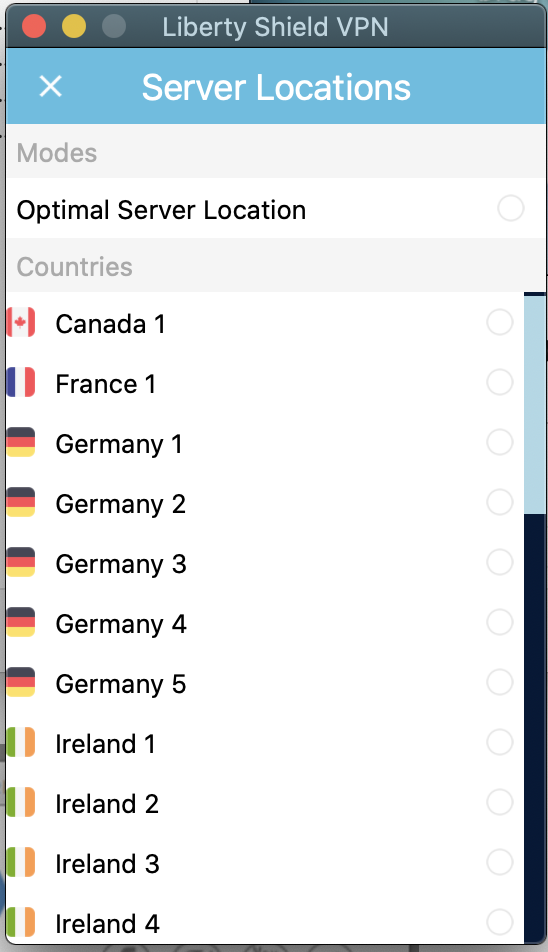
Choose your country and server, then reconnect.
Quick troubleshooting
-
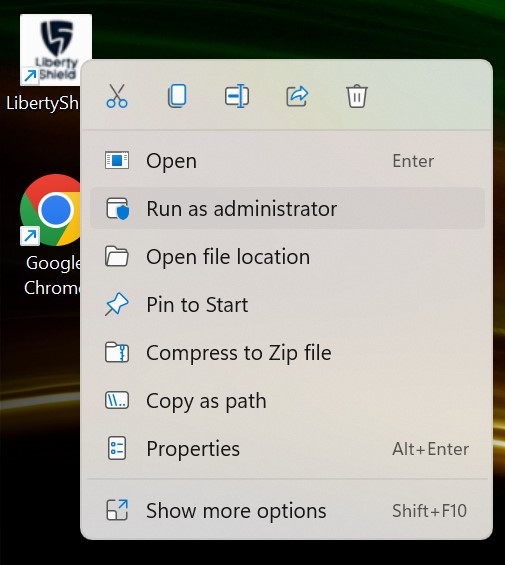
App won't open? Right-click the Liberty Shield desktop icon and choose Run as administrator.
-
Can't sign in? Reset your password at www.libertyshield.com using Forgot Password — the app and website share the same login.
-
Connected, but a website still sees your real location? Disable IPv6 on your PC (Settings > Network & Internet > your adapter > IP settings), then reconnect.
-
Want to check where you appear? Visit showmemyip.com — it should show the VPN country you selected.
Stephen
Comments